
Your sending tool says 98% delivered. Your reply rate says something else.
I've been in that spot more times than I'd like. "Delivered" only means the receiving server accepted the email. It says nothing about whether it reached the primary inbox, landed in promotions, or went straight to spam.
This guide is the routine I use to check email deliverability on mailboxes that are already sending. It's five checks, in the order that isolates the problem fastest, and it takes about 20 minutes. After that, I'll show you how to read the results together and what to fix first.
Most dashboards measure delivery, but results depend on placement, and they are not the same number.
Delivery rate is the share of emails the receiving server accepted. A message that lands in spam still counts as delivered.
Inbox placement rate is the share that reached the primary inbox. That's the number that decides whether anyone reads your email, and your sending tool can't see it, because the inbox provider never reports where it filed the message.
So a proper deliverability check has to look at three layers: whether servers accept your mail, whether they trust it, and where they put it. This guide on email deliverability metrics explains each metric in more depth if you want the definitions first.
Gather four things first so the 20 minutes go into checking, not hunting for logins.
One note on scope: this routine is for mailboxes that are already sending. If you are about to launch a brand-new domain or campaign, the pre-send version is covered in this email deliverability test guide.
Run these five checks in order, and stop at the first one that fails, because every later check depends on it.
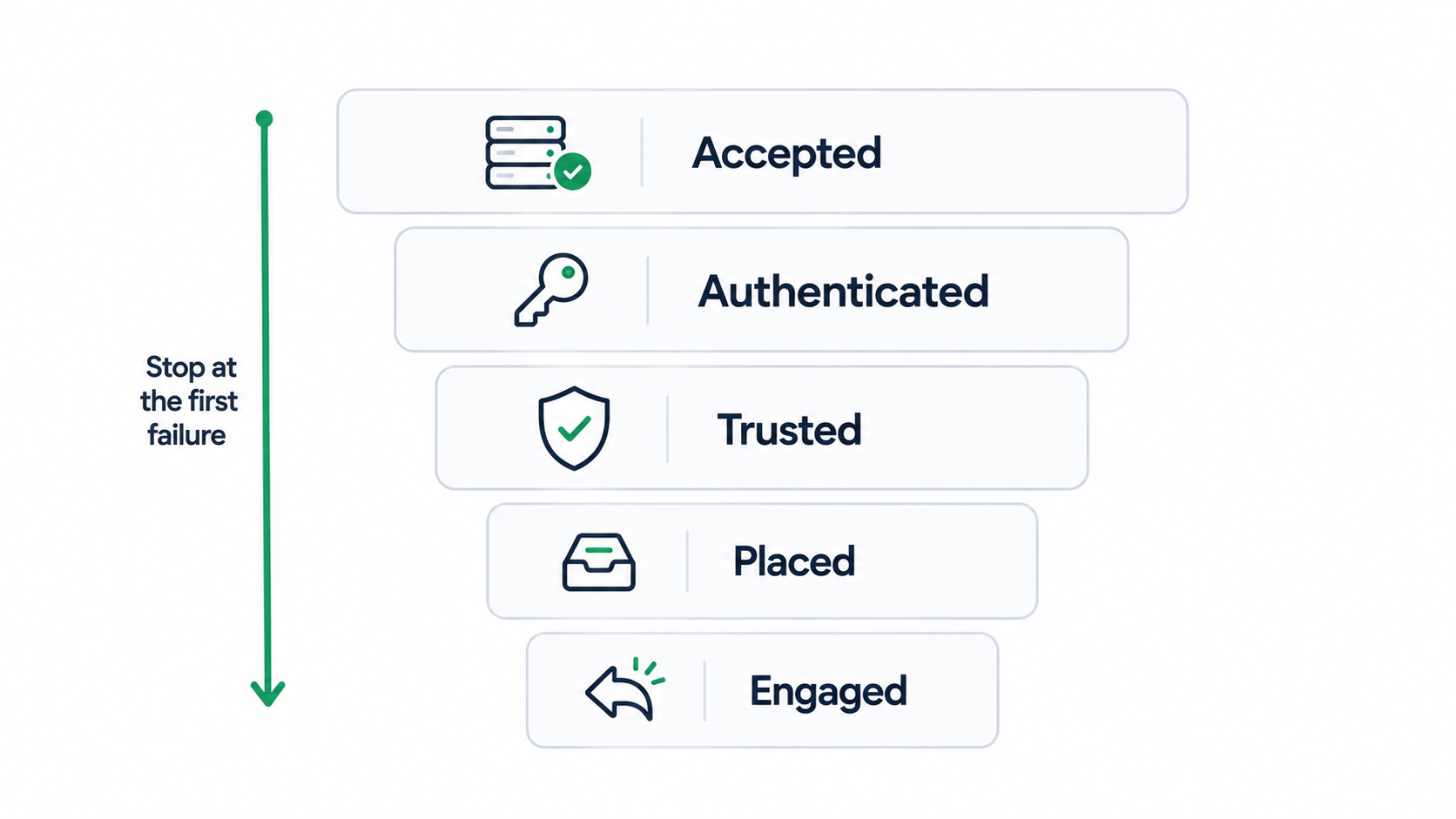
Open your bounce log and read the actual bounce messages. The count tells you little; the code tells you why.
Here are the Gmail codes I see most, with Google's own meaning from its Gmail SMTP errors and codes list:
Codes starting with 4 are temporary and codes starting with 5 are permanent. My rule of thumb: if hard bounces climb above 2% of sends, I pause the campaign and verify the list before anything else. An email validity check on the remaining contacts is the fastest fix, and this walkthrough on the 550 permanent failure error covers the trickier rejections.
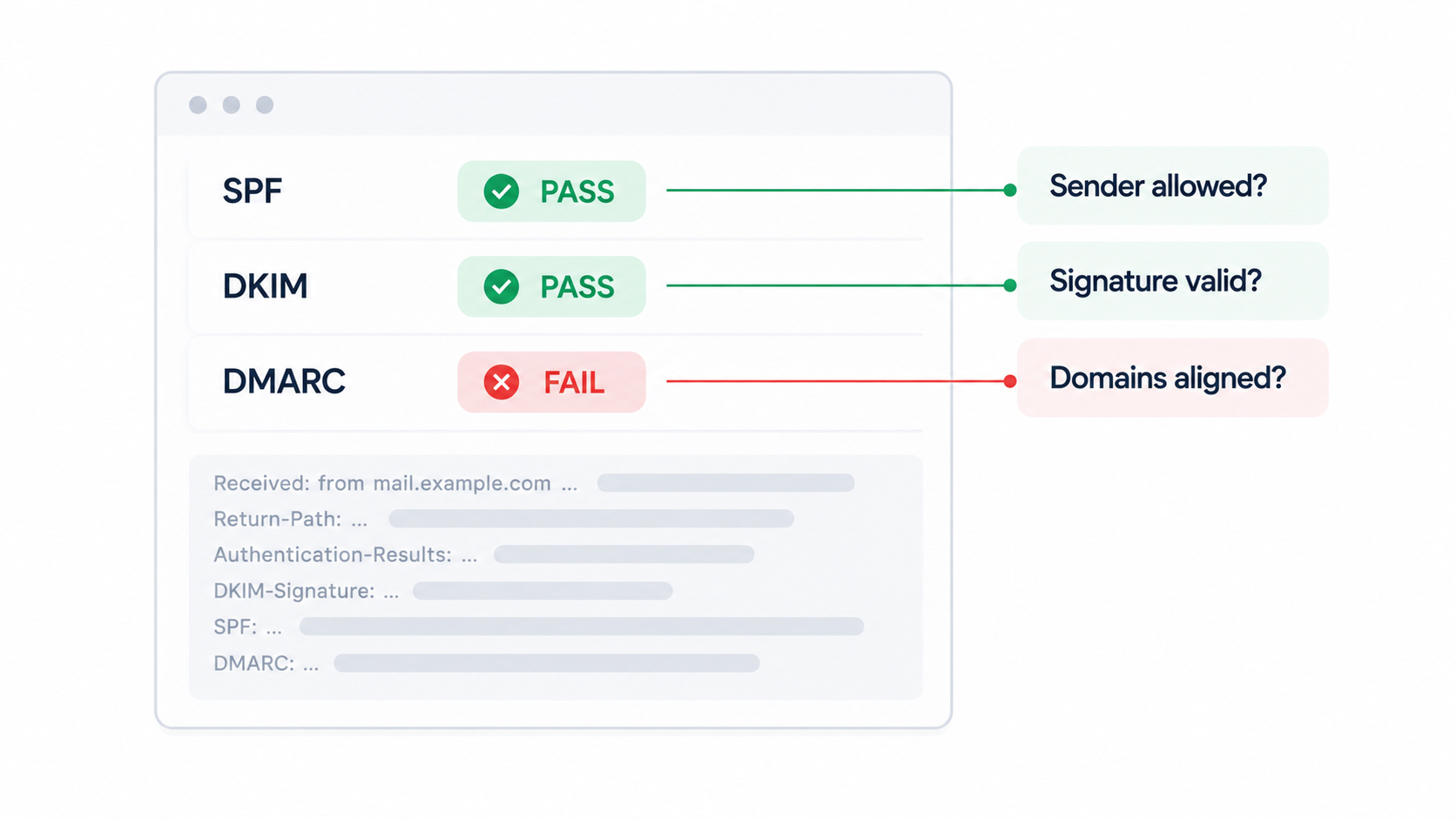
Open the email you sent in a Gmail inbox, click the three-dot menu and choose "Show original." The top of that page shows SPF, DKIM and DMARC, each marked PASS or FAIL. In Outlook, the same results sit in the message source under the Authentication-Results header.
What to look for:
Then confirm the records themselves are published correctly, including MX, since incorrect MX records quietly hurt trust too. Here's how to verify SPF, DKIM and DMARC records step by step.
This matters more than it used to. Since February 2024, Google and Yahoo require SPF, DKIM and DMARC for bulk senders, along with one-click unsubscribe for marketing mail and a spam rate kept below 0.3% (Google's email sender guidelines). Microsoft began routing non-compliant mail from domains sending over 5,000 emails a day to Junk on May 5, 2025.
Authentication proves who you are. Reputation decides whether providers want your mail. I check three sources.
Google Postmaster Tools. Version 2 adds a Compliance Status dashboard that shows whether your domain meets Google's sender requirements, including authentication, DMARC, unsubscribe handling and the user-reported spam rate. Google is retiring the old Domain Reputation and IP Reputation dashboards, so older guides that tell you to aim for "High" reputation there are out of date. One catch: the v2 spam rate only counts mail that reached the inbox and was then reported, so a low number can hide mail that's already being filtered. This Gmail Postmaster Tools review covers setup and its limits.
Microsoft SNDS. Smart Network Data Services shows complaint rates, spam trap hits and filtering status for IPs you own. It's IP-based, so it's useful on dedicated IPs and not on shared ones. It moved to a new address in June 2026, so update old bookmarks.
Blocklists. Run your sending domain and IPs through a multi-list lookup. A listing on a major list like Spamhaus explains sudden drops across many providers at once. Here's how to check if your domain is blacklisted, and what to do once you've found a listing.
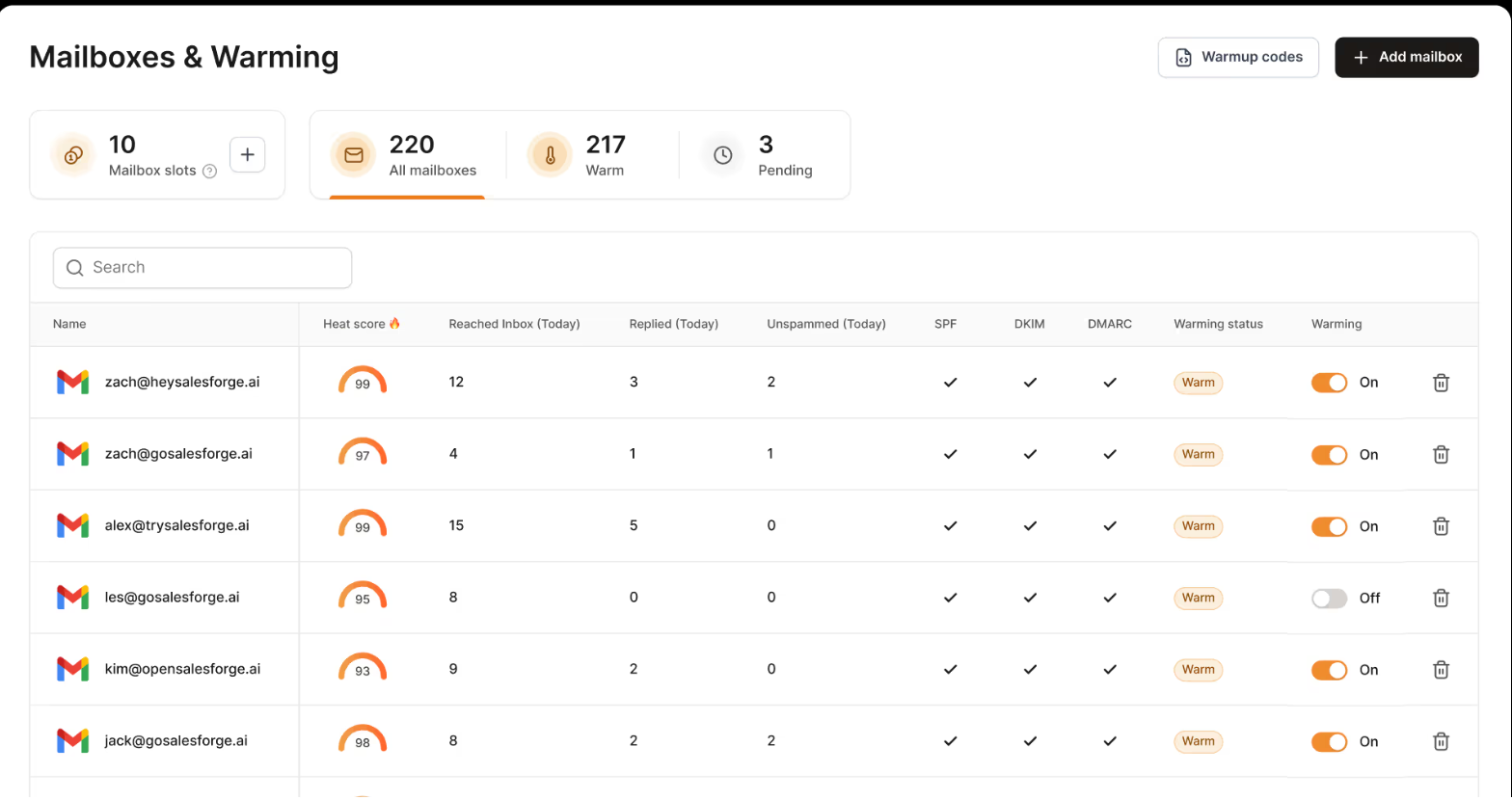
Postmaster Tools only shows data once you send enough mail to personal Gmail accounts, which many cold email mailboxes never do. That's the gap a per-mailbox reputation score fills, and it's why I watch Heat Score™ in Warmforge for every mailbox, aiming for 85 or above before scaling volume.
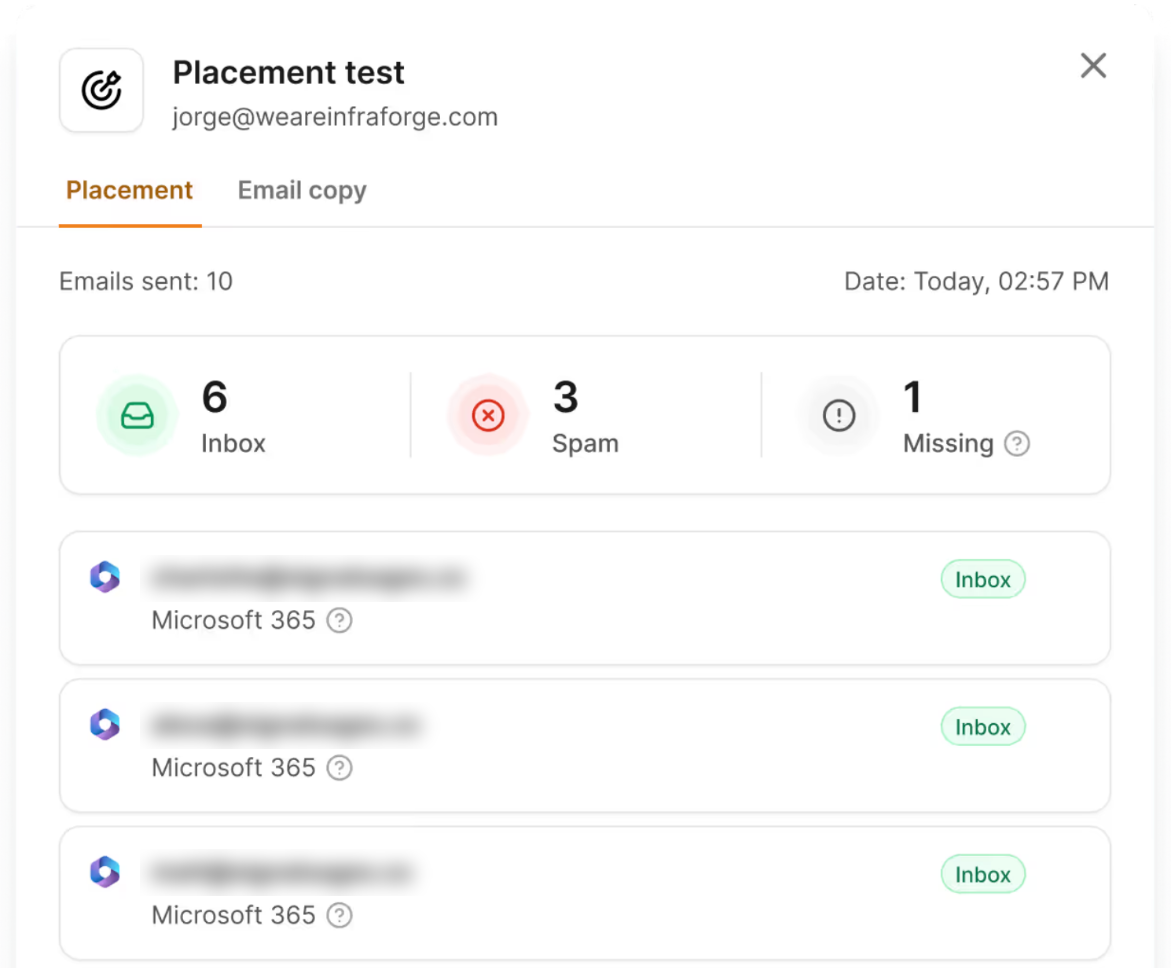
This is the check that answers the question everyone actually has: inbox, promotions or spam?
An inbox placement test sends your real email, from your real mailbox, to a set of seed addresses across Gmail, Outlook and other providers, then reports which folder each copy landed in. If you haven't run one before, this explainer on what an inbox placement test is covers how the seed results are calculated.
A few habits make the result trustworthy:
If you just want a quick answer today, the free Salesforge inbox placement test gives you a seed address and a per-provider result for one email. For ongoing checks, Warmforge's Inbox Placement Tests cover every connected mailbox.
The last check is behavioral. Inbox providers watch how people respond to your mail, so falling engagement often shows up here before it shows up anywhere else.
One failed check rarely tells the whole story, so here's how I read the results together.
If you're stuck between two causes, this list of reasons emails go to spam helps narrow it down. Once you know where you've been listed, this guide to removing your domain from a blacklist covers the delisting steps for each major list.
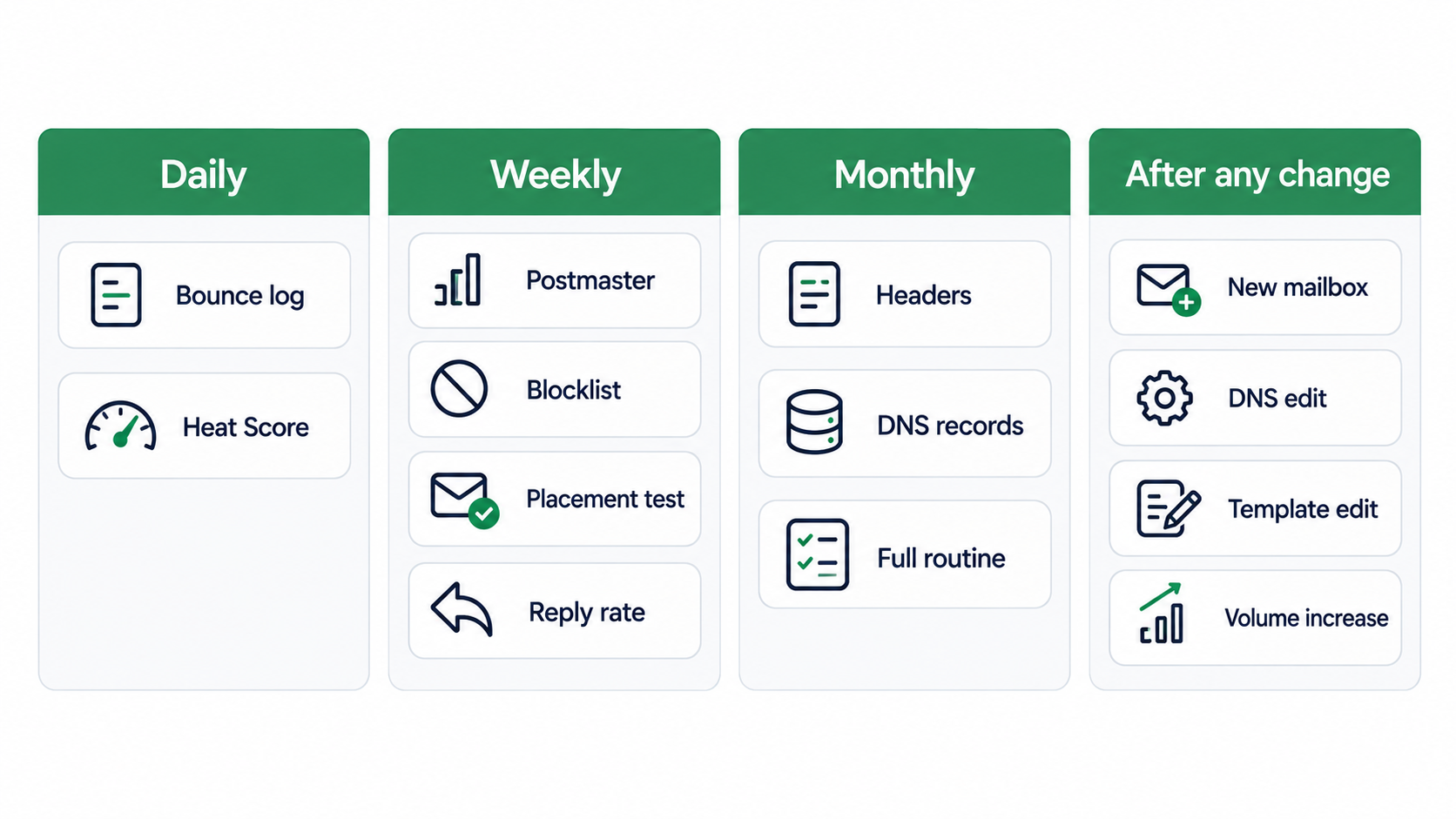
Deliverability drifts slowly and then breaks quickly, so I check on a fixed rhythm rather than waiting for replies to drop.
Two minutes: scan the bounce log for new 421 or 550 codes and glance at Heat Score™ for any mailbox that dropped overnight.
Run Checks 3 to 5: Postmaster Tools compliance status, a blocklist lookup, one placement test per active sending domain, and reply rate by mailbox.
Run the full routine, including headers and DNS, because records get edited and break quietly. For a deeper quarterly review, this cold email deliverability audit goes further into infrastructure and list sources.
Retest placement after you add a mailbox, change DNS, edit a template, add a tracking domain or raise volume. Most deliverability drops I've traced back started with one of those five changes.
Yes, most of this routine costs nothing; what free tools can't do is watch every mailbox for you.
The limit of free tools is coverage. They test one email, one moment, one mailbox. Once you're running 20 or 200 mailboxes, checking each one by hand stops being realistic, and that's where continuous monitoring earns its cost.
Warmforge runs the trust and placement checks continuously, so you're not repeating them by hand for every mailbox.
It's an email deliverability tool built on premium warmup, and I think of it as the monitoring layer for everything above. Here's what it covers:
Every mailbox has to come from somewhere, and that part shapes what your checks can see. The Forge Stack gives you three infrastructure options under one login. Mailforge is shared infrastructure with automated DNS, Infraforge is private infrastructure with dedicated IPs (the setup where SNDS data becomes available), and Primeforge provides real Google Workspace and Microsoft 365 mailboxes with ESP matching. I usually pair Primeforge with Mailforge or Infraforge, so there's always a mailbox on the same provider as the prospect.
If you send through Salesforge, the checks connect to the sending itself. Warmforge warms every mailbox for free, domain reputation and inbox placement monitoring sit next to your campaigns, and Bounce Shield, built-in email validation, ESP matching, sender rotation and text-only sending all reduce the problems these checks would otherwise catch. Clean data helps upstream too: Leadsforge uses waterfall enrichment across multiple providers, so fewer addresses bounce in the first place.
Teams run this setup three ways: your own team operates it, Agent Frank (Salesforge's AI SDR) runs the outbound workflow end to end, or a certified Forge Expert agency runs it for you.
Checking deliverability is a routine, not a one-time test, and the order you check in matters.
Start with what servers tell you directly: bounce codes and authentication results. Then check trust through Postmaster Tools, SNDS, blocklists and Heat Score™. Only then test placement and look at engagement. Most teams I've worked with skip straight to rewriting copy, when the real problem was a failed DKIM record or a mailbox scaled before it was warm.
Free tools will get you through a one-off check. If you're running more than a handful of mailboxes, I'd let Warmforge watch reputation and placement continuously. If you're on Salesforge, it's already included, alongside the rest of the Forge Stack: infrastructure from Mailforge, Infraforge or Primeforge, data from Leadsforge, sending from Salesforge and Agent Frank if you want an AI SDR running it all under one roof.
If your checks show the problem is upstream of placement, a fresh mailbox needs time before it's trusted, and this email warm-up process guide lays out the two-week ramp.
Run an inbox placement test. Send your real email from your real mailbox to a set of seed addresses across Gmail, Outlook and other providers, and the test reports whether each copy landed in the inbox, promotions or spam. Your sending tool can't tell you this, because it only sees whether the server accepted the email.
Yes. Gmail's "Show original" view checks SPF, DKIM and DMARC for free, Google Postmaster Tools and Microsoft SNDS show reputation data for free, free DNS tools check records and blocklists, and the free Salesforge inbox placement test shows where one email lands. Warmforge also includes 1 free warmup slot and 1 free placement test.
Delivery rate and inbox placement rate are different numbers. On a verified list, I expect servers to accept almost every email, so a delivery rate well above 95%. The number that matters more is inbox placement: most seeds in a placement test should land in the primary inbox, and your spam complaint rate should stay well below Google's 0.3% threshold.
Delivery rate counts emails the receiving server accepted, including ones filed in spam. Inbox placement rate counts emails that reached the primary inbox. You can have a 99% delivery rate and still have half your emails in spam.
Scan bounces and mailbox reputation daily during active campaigns, run blocklist, Postmaster and placement checks weekly, and do a full check including headers and DNS monthly. Also retest after any change to DNS, mailboxes, templates, tracking domains or volume.
Most spam tests check content and authentication, not reputation. If your domain or mailbox reputation is weak, or the email was sent at a volume your mailbox isn't warmed for, providers can still filter it. Check Heat Score™ and blocklists, and run placement tests from the real sending mailbox.
Warmup builds the positive sending history that inbox providers use to decide whether to trust a new mailbox. It won't fix broken authentication or a bad list, but it's the main way a new mailbox earns reputation before cold sends. Warmforge keeps warmup running continuously and tracks the result with Heat Score™.