
When open rates fall overnight or replies dry up while the copy stays the same, sender reputation is the first thing I check. It is the trust record each mailbox provider keeps on your domain and IP, and it decides whether your message reaches the inbox, the promotions tab, or spam.
How you check it has changed in the last year. Google removed the Domain and IP Reputation dashboards when it moved every sender to Postmaster Tools v2. Gmail moved from warnings to active enforcement of its sender rules in November 2025. Microsoft relaunched SNDS on a new portal in June 2026. Many guides still tell you to watch a High, Medium, Low chart that no longer exists.
In this guide I cover what sender reputation means in 2026, a 15-minute check you can run today, the numbers providers actually enforce, and the recovery plan I use when a domain starts landing in spam.
Sender reputation is the trust score mailbox providers attach to your domain and sending IP, built from how recipients react to your email over time.
Every provider keeps its own version. Gmail, Outlook and Yahoo each watch complaints, bounces, authentication results, sending patterns and engagement, then use that history to decide where your next message goes. There is no universal number shared between them, which is why the same campaign can land in the Gmail inbox and the Outlook junk folder on the same day.
IP reputation belongs to the server address that sends your mail. On a shared IP you inherit the behavior of every other sender on that address. On a dedicated IP the history is yours alone, which is good when you send well and painful when you do not.
Domain reputation follows the domain in your From address across every IP and every sending tool. Switching email platforms does not reset it. Gmail in particular leans heavily on domain reputation, which is why cold email teams send from secondary domains and keep the primary domain for customer and internal mail.
For years the Domain Reputation chart in Google Postmaster Tools was the closest thing to an official grade. Google retired that dashboard and the IP Reputation dashboard when it moved all senders to Postmaster Tools v2, and the v2 API that became generally available in February 2026 ships without reputation fields. What v2 gives you instead is a Compliance status view, your user-reported spam rate, authentication results and delivery errors.
Third-party numbers such as Validity's Sender Score still exist and are useful as a baseline, but they are estimates built from a vendor's own data network. They are not the score Gmail or Outlook uses to filter you. So in 2026 you read reputation from several signals together, which is what the next section walks through.
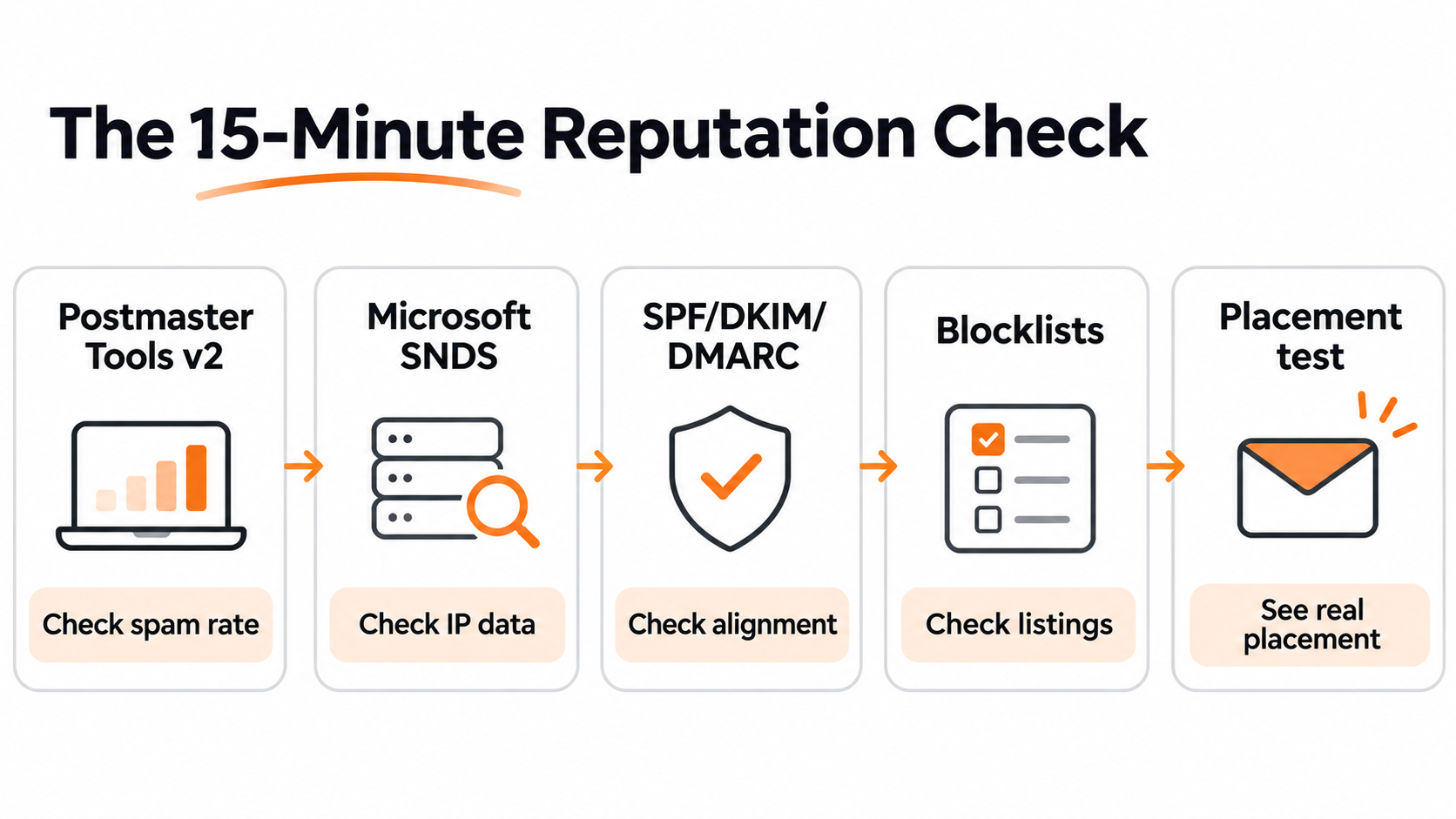
Run these five checks in order, because each one answers a different question about where your reputation stands.
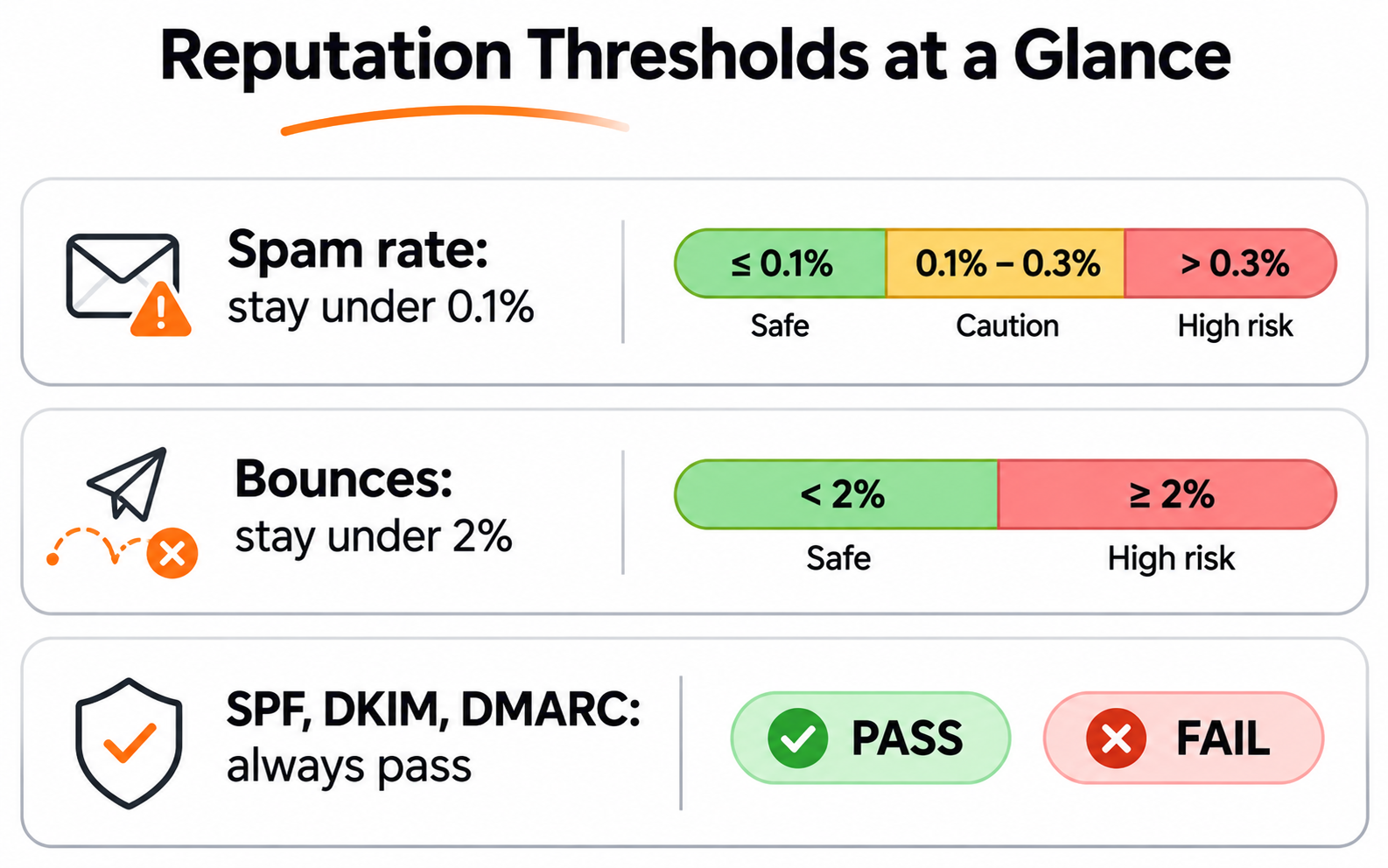
Verify your sending domain in Google Postmaster Tools, then open the Compliance status page and the Spam rate chart. Compliance status shows whether you meet Gmail's sender requirements. The spam rate shows the share of your Gmail mail that recipients reported as spam. Google asks senders to stay below 0.1% and never reach 0.3%. If the charts are empty, your daily Gmail volume is too low for Google to report, which is common for cold email mailboxes.
I cover the limits of the tool in my Gmail Postmaster Tools review.
Smart Network Data Services shows how Outlook.com sees the IPs you control, including complaint and spam trap data. Microsoft moved SNDS to a new portal on June 8, 2026, so old bookmarks and automated imports may now return errors. SNDS only helps if you own the IP. On shared infrastructure, the placement test in Step 5 tells you more.
If you send 5,000 or more emails a day to Outlook, Hotmail or Live addresses, also read my breakdown of the Microsoft bulk sender guidelines.
Authentication is the entry ticket. Send a test email to a Gmail inbox, open "Show original" and confirm SPF, DKIM and DMARC all say PASS, with the DKIM domain matching your From domain. Microsoft rejects non-compliant bulk mail with a 550 5.7.515 error, and Gmail now applies temporary and permanent rejections to bulk mail that fails its rules.
My guide on how to verify SPF, DKIM and DMARC records shows the full check.
Run your domain and sending IPs through a blocklist lookup such as MxToolbox, and check Spamhaus directly. One listing on a small list rarely matters. A Spamhaus listing usually does.
Here is how to check if your domain is blacklisted and read the results.
Every check above is indirect. A placement test is the only one that shows where your email actually lands. You send a real message to a set of seed mailboxes across Google and Outlook, and you see how many reached the inbox, the promotions tab or spam. I run one before every new campaign and after any change to domains, copy or volume.
If the method is new to you, start with what an inbox placement test is.
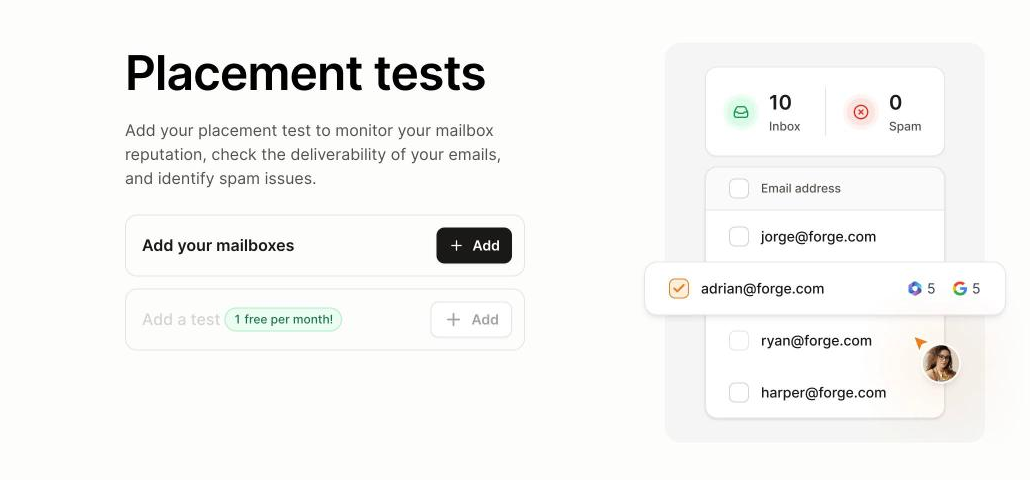
Placement tests in Warmforge: add a mailbox, run a test, and see inbox versus spam placement across Google and Outlook. Every account gets 1 free test per month.
Free and paid email sender reputation checkers compared
Providers score you on a handful of measurable signals, and each one has a number you can work against.
Complaints carry the most weight. Google calculates the rate daily, and once a bulk sender goes above 0.3%, it loses access to delivery mitigation until the rate stays below 0.3% for seven days in a row. One detail many senders miss: once your domain sends close to 5,000 messages a day to Gmail, it is permanently classed as a bulk sender, even if volume drops later.
My guide to keeping your spam complaint rate below 0.3% covers the fixes.
Hard bounces tell providers you mail addresses you never confirmed. Verify every list before it goes into a sequence, remove hard bounces immediately and watch for spam traps in old or scraped data. Starting from a verified B2B source such as Leadsforge cuts most of this risk before the first send.
The full routine is in my email list hygiene guide.
Providers watch how you send as much as what you send. A new domain that jumps from 20 emails a day to 500 looks like a compromised account. Spread volume across mailboxes, keep daily sends consistent and raise them in small steps.
I explain the patterns filters look for in how sending patterns affect email reputation.
Replies are the strongest positive signal you can earn. Opens matter less than they used to, because Apple Mail Privacy Protection loads images automatically and inflates open rates. I judge engagement by replies and by placement test results, not by opens.
Match the symptom you see to its most likely cause before you change anything, because the wrong fix can make things worse.
If two or more rows match, fix authentication first, then volume, then content. Authentication problems block everything else from improving.
Recovery follows a set order: stop the damage, repair the foundation, then rebuild trust slowly.
My guide to removing yourself from email blacklists lists the steps for the major ones.
Rebuild with warmup activity and small volumes sent only to your most engaged or best-verified contacts. Watch spam rate and placement tests each week and raise volume only when both hold steady. In my experience a mild problem recovers in two to four weeks, while a domain with a serious blocklist history can take six weeks or more. If Gmail cut off delivery mitigation, it comes back once your spam rate stays below 0.3% for seven consecutive days.
If a secondary sending domain is badly damaged, retiring it can be faster than repairing it. Do not use new domains to keep sending the same way, though. Providers connect domains through shared content, links and infrastructure, and the new domain inherits the problem. Fix the cause first, then add fresh domains and mailboxes and warm them properly.
Prevention costs far less than recovery, and for cold email it starts before the first campaign goes out.
Warmforge is the deliverability tool I use to build and watch reputation for every sending mailbox. You connect a mailbox, turn on warming with one click, and AI-written emails start moving through a premium warmup pool. That pool mixes SMTP, Google Workspace and Microsoft 365 mailboxes, and the activity runs across multiple languages, so it looks like real conversation to providers instead of an English-only pattern. Warmup runs continuously, so reputation keeps building after campaigns start.
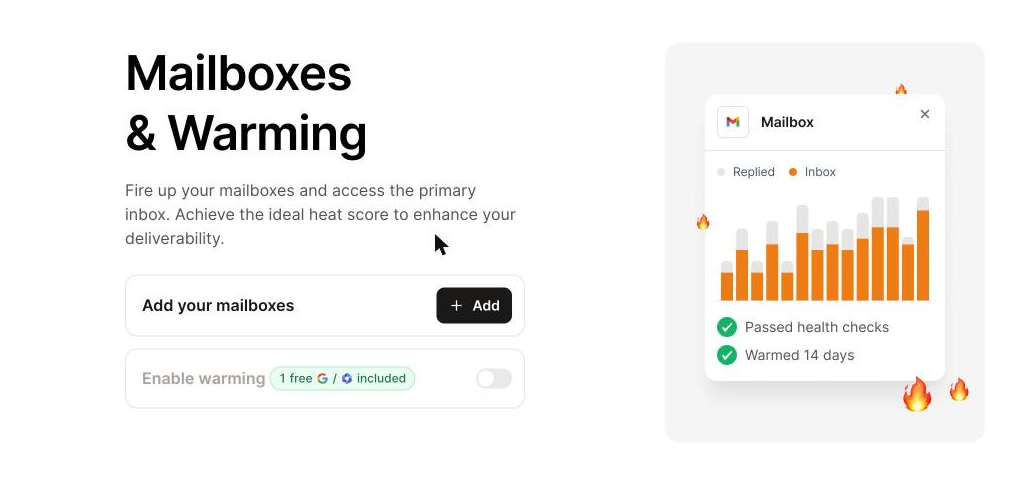
Mailboxes and Warming in Warmforge: connect a mailbox, enable warming, and track health checks and warmup progress.
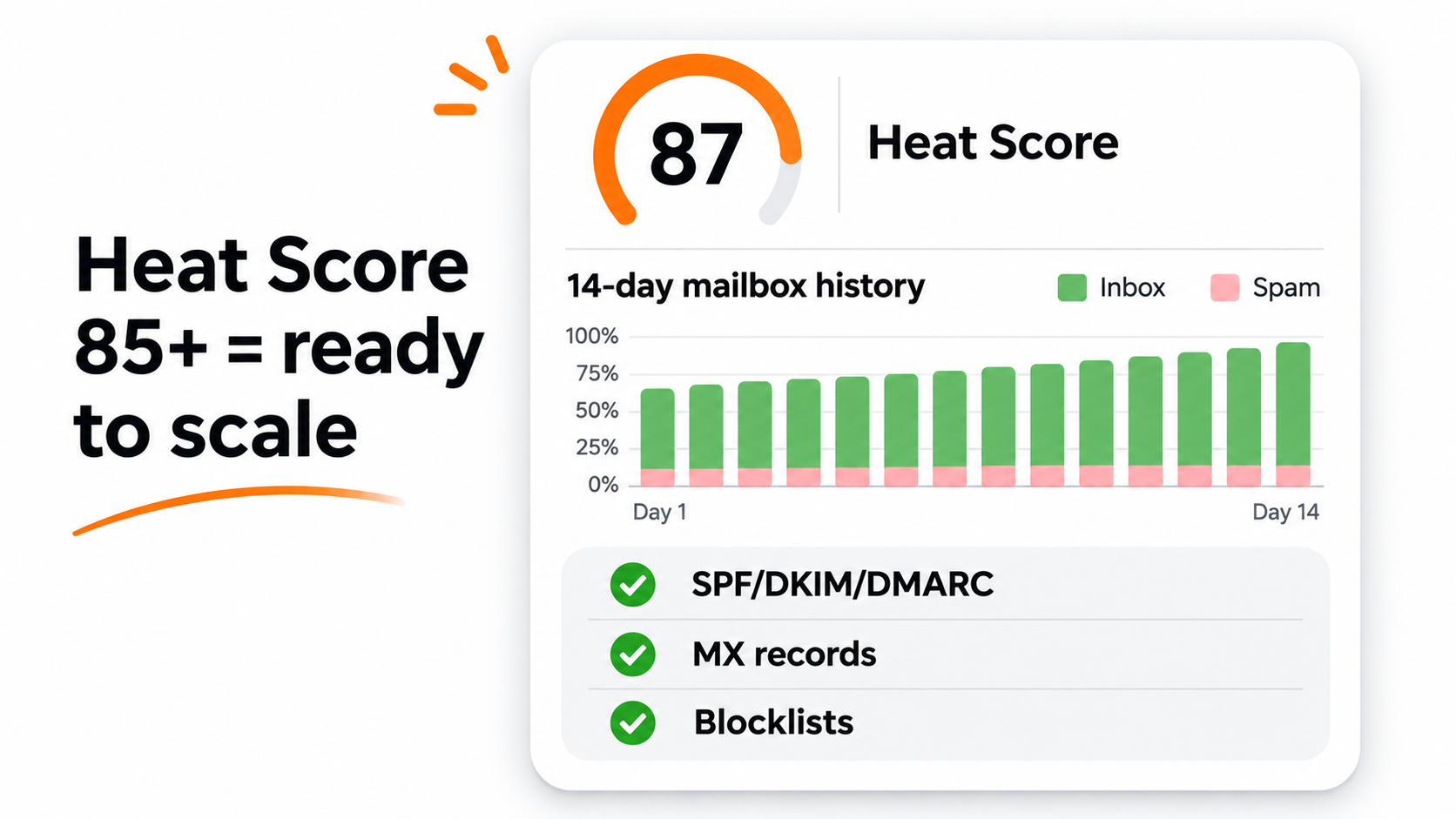
Every mailbox in Warmforge gets a Heat Score™, which tracks reputation strength over time from its warmup results, including how many emails reached the inbox, earned replies and avoided spam. Think of it as the reputation reading Postmaster Tools no longer gives you, but per mailbox and for every provider. I wait for a Heat Score of 85 or higher before scaling volume, which usually takes about 14 days of warmup on a new mailbox.
Health Checks monitor DNS records, MX records and blocklist status for every mailbox and alert you when something breaks, which covers Steps 3 and 4 of the check above automatically. Inbox Placement Tests cover Step 5 across Google, Outlook and other providers.
The full process, from first connection to first campaign, is in my guide to the email warm-up process.
Reputation depends on infrastructure too, which is why Warmforge works best as part of the Forge Stack. You can get shared-IP mailboxes from Mailforge, dedicated-IP infrastructure from Infraforge, or real Google Workspace and Microsoft 365 mailboxes from Primeforge for ESP matching. You warm all of them in Warmforge and send through Salesforge, where Warmforge is included free with unlimited warmup slots on every plan.
You can run the stack three ways: your own team operates it, Agent Frank (the Salesforge AI SDR) runs outreach for you while he keeps sending inside safe limits, or a Forge Expert agency runs it end to end.
Sender reputation in 2026 is something you read from several signals, not from one chart.
Check Gmail spam rate and compliance status, Microsoft SNDS, authentication, blocklists and real inbox placement. Keep complaints under 0.1% and bounces under 2%. When something breaks, cut volume first, fix authentication second and rebuild slowly. For cold email, the cheapest protection is warming every mailbox, watching its Heat Score and testing placement before each campaign, which is exactly the job Warmforge was built for.
Use Google Postmaster Tools v2 for your Gmail spam rate and compliance status, Microsoft SNDS if you control your sending IPs, a blocklist lookup such as MxToolbox, and Sender Score for a baseline IP score. Add a free Warmforge placement test to see where your emails actually land across Google and Outlook.
No. Google retired the Domain Reputation and IP Reputation dashboards when it moved all senders to Postmaster Tools v2. You now read reputation through the Compliance status page, the spam rate chart, authentication results and delivery errors.
There is no official score from Gmail or Outlook. On third-party scales such as Sender Score, a higher number on its 0 to 100 range is better. In practice, a healthy reputation means a spam rate below 0.1%, hard bounces under 2%, passing authentication and consistent inbox placement in tests.
Mild problems usually recover in two to four weeks of reduced, careful sending. Domains with blocklist listings or heavy complaint history can take six weeks or longer. Gmail restores delivery mitigation once your spam rate stays below 0.3% for seven consecutive days.
Yes, when it is done with a quality pool. Warmup builds positive history such as inbox placement and replies before real campaigns start. Warmforge warms mailboxes through a mixed pool of SMTP, Google Workspace and Microsoft 365 mailboxes and tracks the result with a Heat Score.
IP reputation belongs to the server address that sends your email and can be shared with other senders. Domain reputation follows the domain in your From address across every IP and tool, so it cannot be reset by switching platforms.