
A campaign can show a 99% delivery rate and still miss most of its readers. When it says delivered, it only means the receiving server accepted the message. It says nothing about whether the message went to the inbox, the promotions tab or the spam folder.
An inbox placement test closes that gap. Before I launch any new mailbox, domain or campaign, I run one to see where the email lands at each major provider. In this guide, I walk through how to run a test properly, how to read every type of result, where tests can mislead you, and what to fix when placement drops.
An inbox placement test is a controlled send of your real email to monitored seed mailboxes, followed by a report of where each copy landed.
The seed mailboxes sit at the providers your audience uses, such as Gmail, Google Workspace, Outlook and Microsoft 365. The testing tool checks each one and records whether your message reached the primary inbox, a secondary tab such as Promotions, the spam folder, or did not arrive. The result is broken down by provider, so you can see when Gmail accepts you while Outlook filters you.
The set of test addresses itself is called a seed list, which I explain in more detail in my guide to email seed lists.
Each common check answers a different question, and only the placement test tells you where the email ends up.
Inbox placement rate is the share of seed mailboxes that received your email in the inbox. If 18 of 20 seeds show the message in the inbox, your placement rate is 90%. Most tools also show the spam and missing rates, and some separate the primary inbox from tabs.
I go deeper on the metric in my piece on inbox placement rate.
A placement test is only as useful as its setup, so these five steps focus on matching your real sending conditions.
Test from the same mailbox, domain and sending tool you will use for the campaign, with the same subject line, links, signature and tracking settings. A "clean" test version with links removed tells you nothing about the real send. If you plan to send from several mailboxes, test each one, because each mailbox builds its own reputation.
In Warmforge, open Placement tests and add the mailboxes you want to test. You can connect a single Google Workspace, Microsoft 365 or IMAP/SMTP mailbox, import mailboxes from Primeforge, or upload a CSV of Mailforge or Infraforge mailboxes.
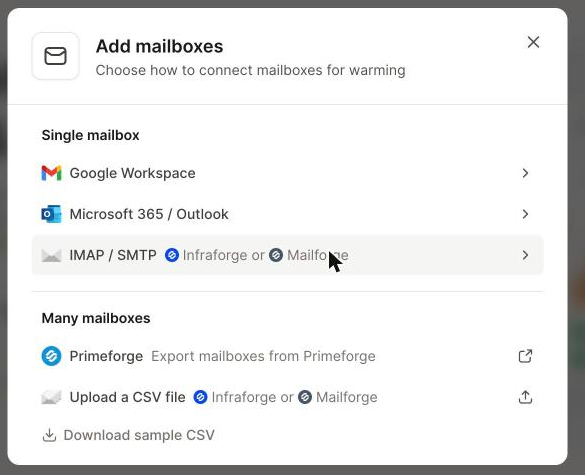
Start the test and send your message to the seed addresses the tool provides. Make sure your seeds cover the providers your prospects actually use. For B2B cold email that usually means Google Workspace and Microsoft 365 more than consumer Gmail or Yahoo. One seed per provider is not enough, because filtering varies even inside one provider, so use several.
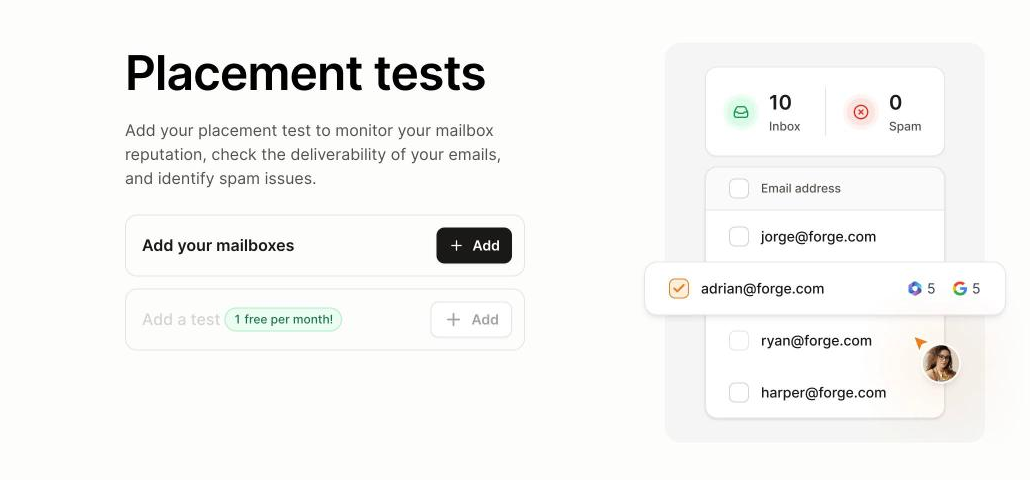
Wait for the report, then save the result for each provider: inbox, promotions or another tab, spam, or missing. Note the date, mailbox, subject line and volume that day. Without that record you cannot tell whether a later change helped.
If placement is poor, change one thing at a time, such as removing a link, fixing a DNS record or swapping the subject line, then run the test again. Changing several things at once hides which fix worked.
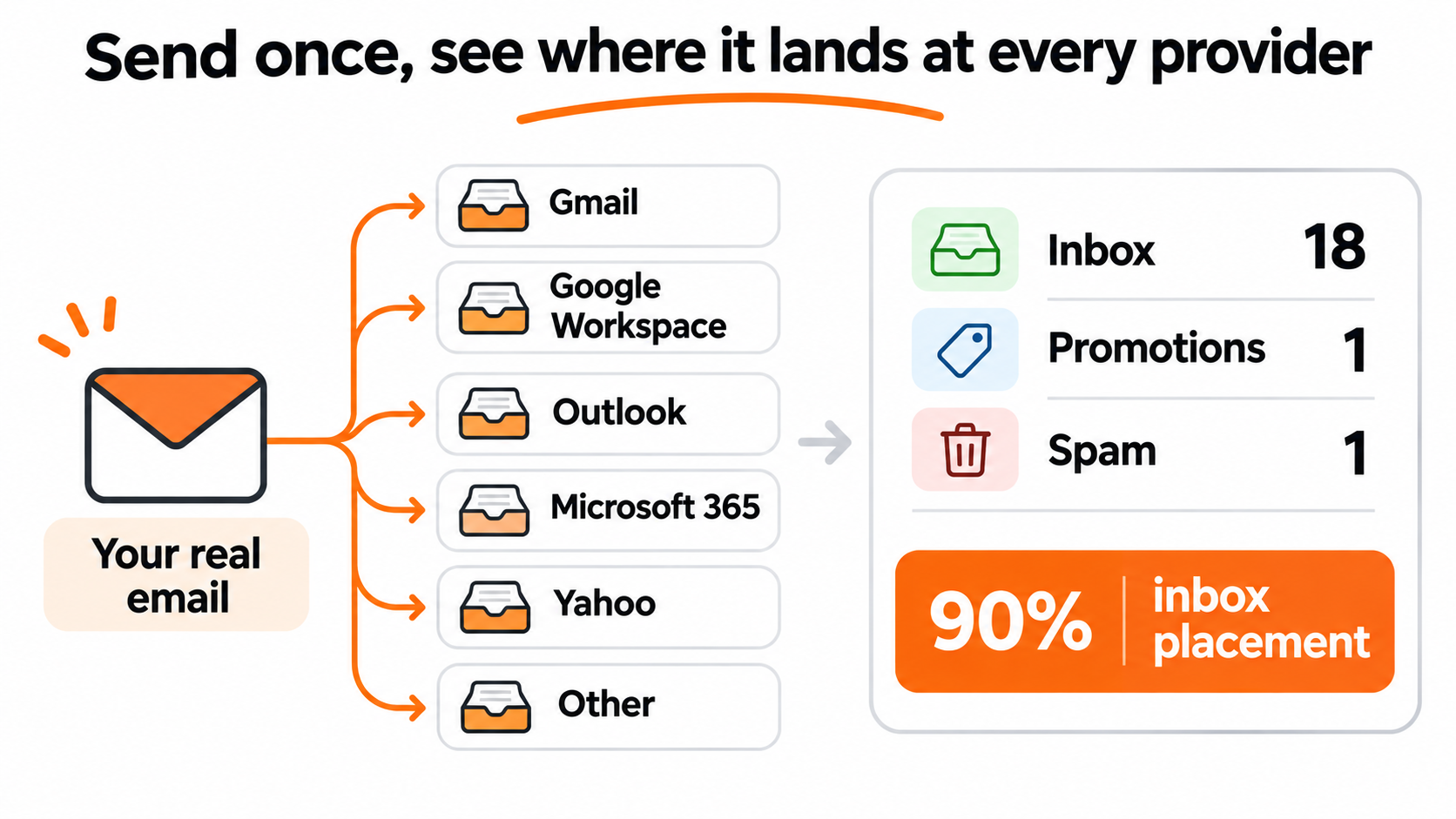
Your overall rate shows how urgent the problem is, and the pattern across providers points to where to look.
Then look at where the misses are:
Gmail and Outlook filter differently, so a split result is common. I compare the two in detail in Gmail vs Outlook email deliverability.
Seed mailboxes have no engagement history. They never reply, open or rescue your email from spam, while Gmail in particular tailors filtering to each recipient's behavior. A test is also a single snapshot of one message on one day. So treat the result as an early warning and a way to compare changes, not a guarantee for every recipient.
I read it alongside reply rates by provider and the Gmail spam rate, which I explain in my guide to email sender reputation.
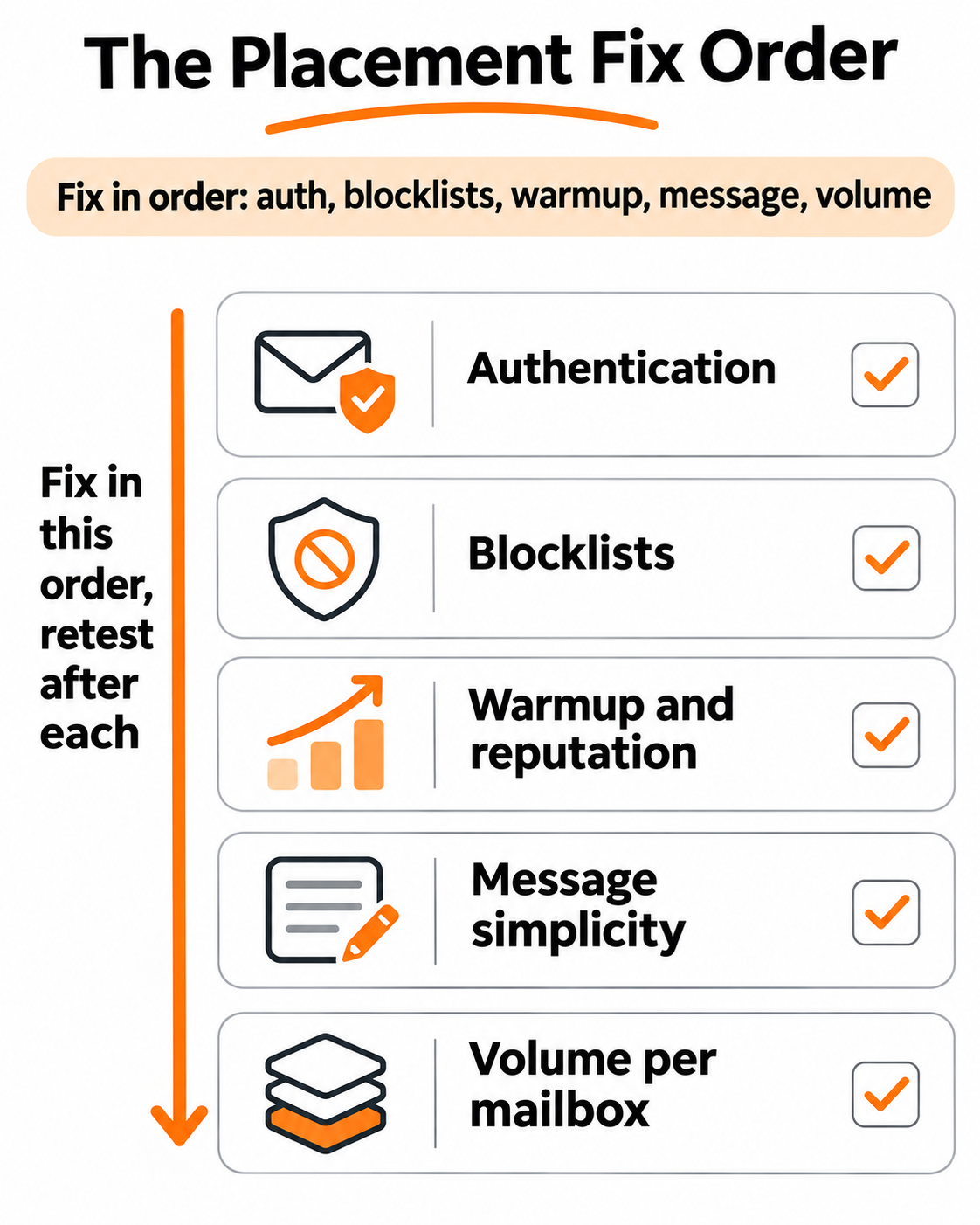
Work through these fixes in order, retesting after each one, because problems higher up the list block the ones below from improving.
Confirm SPF and DKIM pass and DMARC aligns with your From domain. Microsoft rejects non-compliant bulk mail outright, and Gmail applies temporary and permanent rejections to bulk senders who miss its rules.
My guide on how to verify SPF, DKIM and DMARC records walks through the checks.
If every provider sends you to spam, scan your domain and sending IPs. A Spamhaus listing usually explains it.
Here is how to check if your domain is blacklisted.
New or recently damaged mailboxes need warmup before they carry campaign volume. I warm each new mailbox for about 14 days and keep warmup running afterwards.
The full routine is in my guide to the email warm-up process.
Promotions tab and spam placement often come from formatting. Cut links to one, remove images and tracking pixels for cold outreach, and avoid link shorteners. Then retest the plain version against the original.
A single mailbox sending hundreds of emails a day stands out. Keep daily volume per mailbox modest, rotate across several mailboxes and increase volume in small steps.
Testing works best on a schedule tied to the moments when placement is most likely to change.
For teams running dozens of mailboxes, regular testing turns into monitoring. I cover that setup in how to monitor inbox placement across providers.
Several tools offer a free or low-cost placement test, and the right one depends on whether you need a one-off check or ongoing monitoring.
For a deeper review of each option, see my roundup of the best inbox placement testing tools.
Placement testing works best when it sits alongside warmup and monitoring that fix what the test finds.
Warmforge runs Inbox Placement Tests across Google, Outlook and other providers, so you can see exactly where your emails land- primary, promotions or spam- before a campaign goes live. Every warmup slot includes one free placement test a month, and the Pro and Growth placement plans cover regular testing of up to 50 or 250 mailboxes per test.
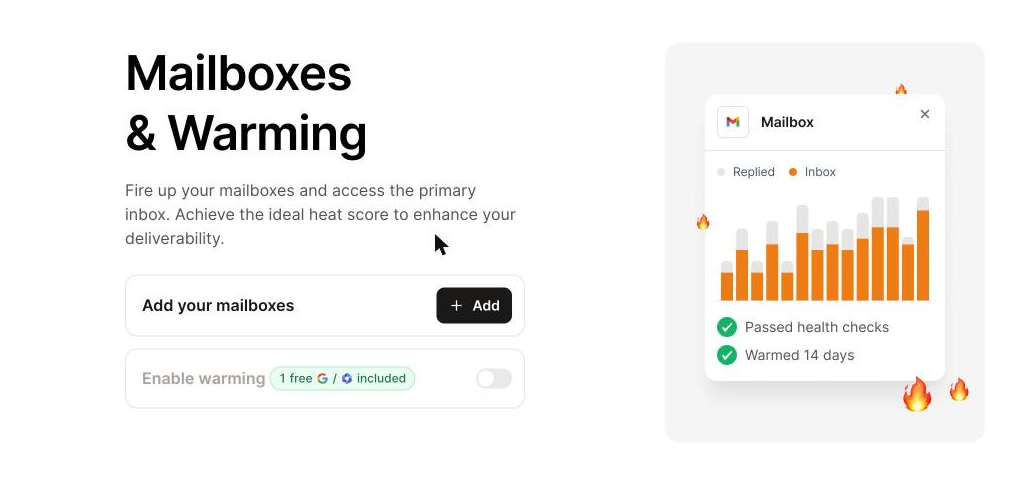
The test is one part of a deliverability command center. One-click AI warmup sends human-like conversations through a premium pool that mixes SMTP, Google Workspace and Microsoft 365 mailboxes, with activity across multiple languages. Each mailbox gets a Heat Score™ that tracks reputation strength over time, and I wait for 85 or higher before scaling volume. Health Checks monitor DNS records, MX records and blocklist status for every mailbox and alert you when something breaks.
You can get mailboxes from Mailforge (shared IP), Infraforge (dedicated IP) or Primeforge (real Google Workspace and Microsoft 365 for ESP matching), warm and test them in Warmforge, and send through Salesforge, where Warmforge is included free with unlimited warmup slots. Your own team can run the stack, Agent Frank (the Salesforge AI SDR) can run outreach for you, or a Forge Expert agency can run it end to end.
An inbox placement test is the fastest way to find out whether your email will be seen before you spend a list on it.
Test with your real setup, read the overall rate and the provider pattern, retest after every single change, and pair the results with reply rates and Gmail spam rate. For cold email, run tests where your warmup, Heat Score, and health checks already live, which is exactly how Warmforge is built.
Yes. Warmforge includes 1 free placement test per month with each warmup slot, and you get 1 free slot on signup. Tools such as ZeroBounce and unspam.email also offer free tests. Free tests are fine for one-off checks, while regular testing across many mailboxes usually needs a paid plan.
They are accurate for what they measure: where your message landed at those seed mailboxes at that moment. They cannot reflect personalized filtering for each real recipient, because seed mailboxes have no engagement history. Use several seeds per provider, retest, and read results alongside reply rates and Gmail spam rate.
Aim for 90% or higher. A rate between 80% and 89% means some providers are filtering you, and anything below 80% needs fixing before you scale volume.
Run one before using a new domain or mailbox, before each new campaign, after any DNS or sending tool change, and whenever replies drop without a clear reason. Teams running many mailboxes should test weekly.
A seed list is the set of monitored test addresses. An inbox placement test is the act of sending your email to those addresses and reporting where each copy landed.
Many tools report authentication results alongside placement, but a test is not a full DNS audit. Warmforge Health Checks monitor DNS records, MX records and blocklist status for every mailbox continuously, which covers the setup side between tests.